I think that the choice depends on what development tools you use, what you need to save, and whether you want to deal with the possibility that the user manually changes/corrupts something. Mike uses tools that save a lot of stuff automatically to the registry (window layouts, etc.) so I suspect that he just wanted to keep everything in the same place.
FWIW, I have an item on my TODO list to create a program to save/restore the QSpice color settings. Mike confirmed that he had no plans to add such a feature.
I got as far as mapping all of the registry entries to the GUI elements and stalled trying to decide whether the program could be a simple command line tool or needed to be a GUI program. What do you guys think?
This is good idea. Actually, I want to have a template to load predefine color map(s)? to setup color for multiple channels instead of selecting color one by one.
I should ask my wife is she can see the color difference or not.
Anyway, I realized, I can simply export the registry.
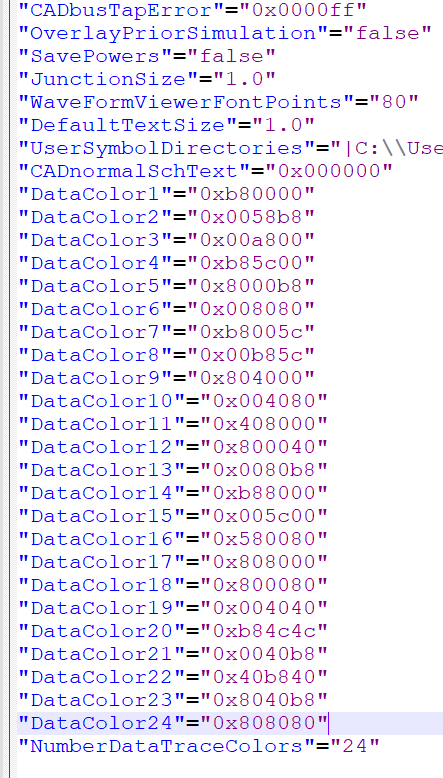
Then open it in notepad, then copy the DataColor part into ChatGPT then tell it to replace the DataColor with its suggestion, then copy it back to the registry file.
After done, I simply save the registry file, then double click that registry file to load it into windows registry
OK, I could probably knock out a command line version in a day or three. Here’s what I was thinking:
User sets up colors using QSpice GUI.
User runs the command line tool with a file name an a “save to file” option switch. This copies from registry to a color set file (*.qclr?).
To restore colors to the registry, user would provide the file name and a “restore to registry” option switch. (Note that the QSpice GUI should be closed while running the restore.)
The *.qclr file would be text so it could be modified directly. So, rather than creating a new color set using the QSpice GUI, an existing *.qclr file could be copied/edited.
Looking for your input so let me know if that sounds sufficiently useful.
Actually I also never understood the registry beforehand.
Anyway, gladly Mike decided to choose human readable name for the registers.
And I just realized:
some of the settings edited by registry can goes to the range outside of the one provided by Qspice GUI.
anyway, the Qspice behavior upon receiving the setting out of bound are not consistent, some will follow exactly the value we write on the registry. some will have internal limit and ignore the registry value.
On the file name → .qpreference ?? .qpref ??
Anyway, quick question… is the registry address always same for every PC?
Anyway, any idea how to change the color of commented out component?
It’s some kind of of Grey, but if I set the Sch editor background to pure black 0x000000, the commented out part just disappear blended with the background
I thought that I got all of the CADxxx stuff. What did I miss?
As for the others, I’ve added switches to restore schematic colors only, waveform colors only, or both. (Not yet posted to Github.) Of the above, which are schematic and which are waveform?
Thanks for the example batch files. I’ll look at them later today.
This is the commented (disabled) part. The color stays dull grey either with default, light, or dark. But if set real black then it disappear. sorry for sending low res.