QColorPrefs is a free, open-source command-line tool to create QSpice color themes and easily switch between them. Primarily intended to quickly switch between dark and light Waveform trace settings, it also supports schematic color themes.
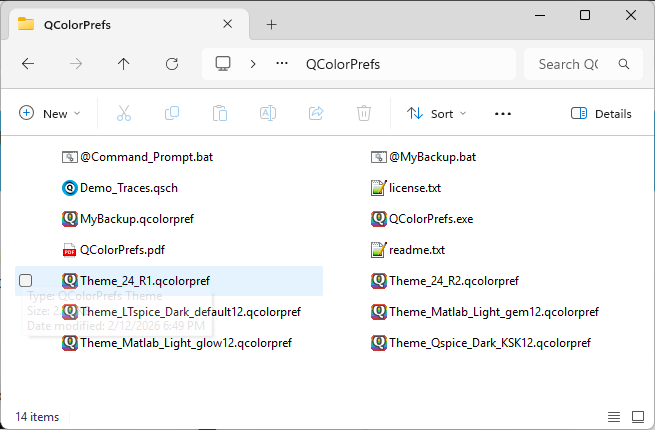
If installed using the MSI installer, you can switch between theme files (*.qcolorpref) with a double-click in File Explorer.
This is a first public release so please let me know what you think and, of course, any issues or suggestions for improvements.
The QColorPrefs tool is currently available on the dev branch of my GitHub repository.
QColorPrefs by @RDunn is a very useful mini tool for modifying the Qspice color theme.
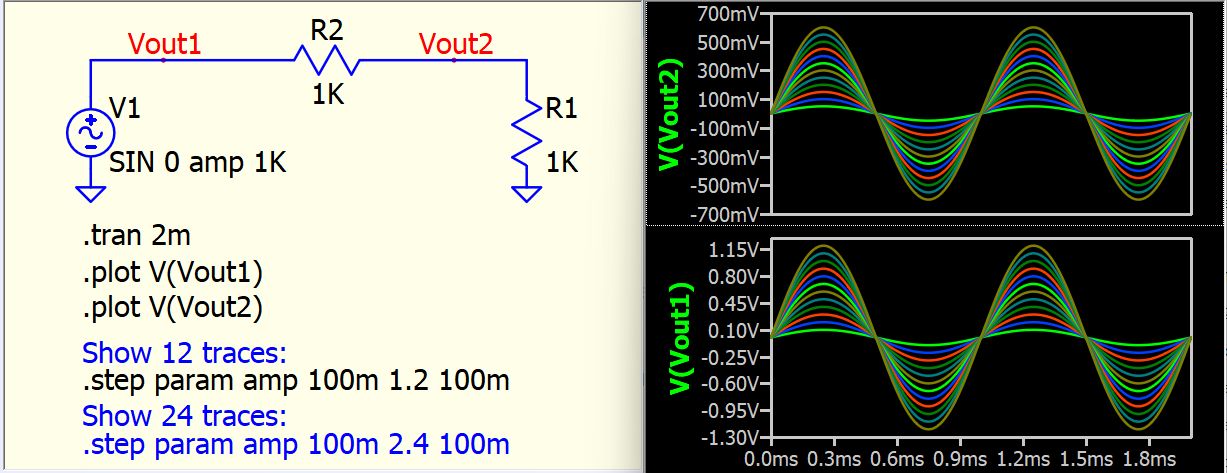
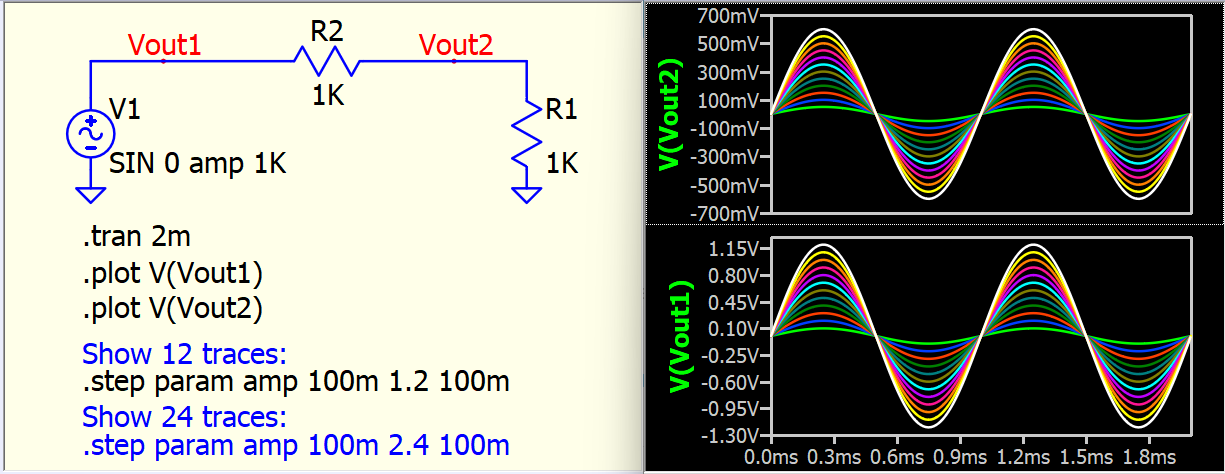
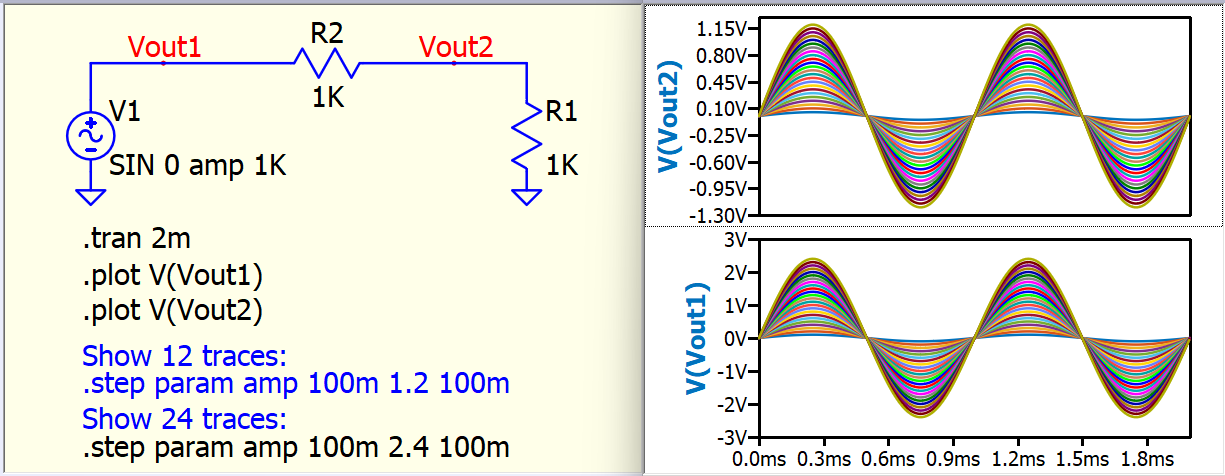
In short, it quickly swaps the color theme of Qspice. Here is a demonstration of the Waveform Viewer color theme.
By default, the Qspice waveform viewer only shows 6 color traces. You can simply reset the color to default with this operation sequence.
In waveform viewer : Edit > Color Preferences > Reset All Colors > OK
This QColorPrefs color theme extends the standard 6 colors to 12 colors by maintaining the first 6 colors to follow Qspice default settings
cmd command : QColorPrefs -rwav Theme_Qspice_Dark_KSK12.qcolorpref
If you are a fan of LTspice and would like 12 colors identical to the LTspice default, here is the color theme
cmd command : QColorPrefs -rwav Theme_LTspice_Dark_default12.qcolorpref
There are more color themes you can download, including Matlab gem12 and glow12. I highly recommend this utility if you are bored with the default 6 colors in the Waveform Viewer.
If QColorPrefs is installed using the MSI installer, the *.qcolorpref theme files will display the project icon. You can apply a theme simply by double-clicking the theme file. (There is no indication that the theme was applied – just close/reopen the Waveform viewer to confirm.)
To use the command line tool directly, open @Command_Prompt.bat (double-click in File Explorer) to easily get to a command prompt window.
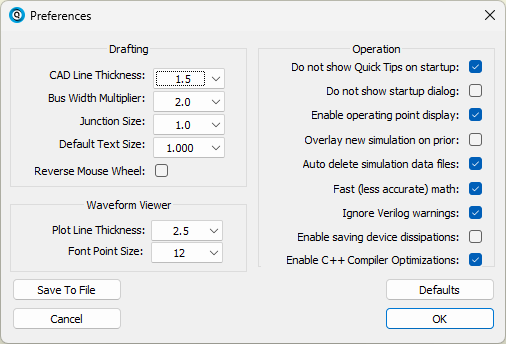
Saves only the items under Drafting (not including Reverse Mouse Wheel) and Waveform Viewer.
Creates a text file (*.qcolorpref) that can be manually edited (use caution).
If installed using the installer, double-click on the *.qcolorpref file to apply the settings. (May require restarting QSpice to apply the changes.)
QSpice Native Save Preferences
Saves everything on the Preferences dialog as well as the current color settings.
Also saves the active user symbol directories (configured in Symbol & IP Browser).
Creates a text file (*.reg) that can be manually edited. (Again, use caution. I recommend editing only to remove lines that you don’t want written back to the Registry.)
This is a native Windows Registry file. Double-click on the file and Windows will, after prompting, write the settings into the Registry.
Bottom Line
If you want to use/share color themes, QColorPrefs is focused on that and won’t change other settings. On the other hand, the native QSpice feature doesn’t require trusting third-party code. (On yet the other hand, QColorPrefs source code is entirely open so you can compile it yourself if there are trust issues. )


 )
)