I am posting this to bring attention to some severe schematic editor UI bugs that drastically slow down workflow and impact productivity. Working engineers need a reliable interface where basic tasks don’t turn into a fight with the cursor.
1. Severe Text Box Cursor (I-bar) Drift
When editing text directives or component values on the schematic, the text insertion cursor (I-bar) fails to line up with the actual mouse pointer.
Horizontal Drift: The I-bar sits multiple characters to the right of where I actually click. The longer the text box is, the worse the drift gets.
Vertical Drift: The cursor is highly sensitive to vertical alignment. If the mouse pointer is even slightly too low within a line, it instantly forces the I-bar down to the line below it.
Result: Standard editing by clicking into text is entirely broken. The only workaround is clicking randomly and using the keyboard arrow keys to manually navigate the text, which is an unnecessary waste of time.
2. Mouse Wheel Zoom Failure with Premium Mouse Hardware
On a standard desktop configuration, QSPICE completely fails to register smooth, continuous mouse wheel scrolling on the grid.
I was originally using a Logitech MX Anywhere 2S. The schematic would completely ignore natural scrolling, only giving a single, jagged “jump” in zoom if I physically held down the wheel button while rolling it.
To verify it was an application bug, I switched to a cheap, baseline Walmart mouse, and continuous scrolling instantly started working.
Result: QSPICE’s engine is clearly failing to process or intercept standard scroll data packets sent by advanced, mainstream mouse drivers (like Logitech’s background software).
The solver engine under the hood is great, but time is money. These basic front-end layout bugs make the software feel incredibly unpolished compared to legacy tools like LTspice. Please look into prioritizing a fix for the text boundary/DPI mapping and standardizing how the grid handles mouse wheel streams.
In most high end mice (Logitech, Microsoft, etc) the driver lets you define what happens when clicking the center (wheel) button. I have mine configured to act as a double left click. I don’t know how Logitech has theirs set as default, but scrolling does not usually involve pressing the scroll button. Only turning the wheel. There may be certain programs where pushing the wheel changes the function of the wheel (such as increasing the speed), but that’s not the normal system function for pressing the wheel button.
I absolutely agree about the text cursor. With most text editors, when you click on a given letter, if you are a little left of center over that letter the cursor drops on the left side of that character. If you click a little right of center, the cursor drops on the right side of that character. That’s not what happens here. If you zoom in so the text is quite large, and try clicking at various points across a letter it seems that for the leftmost 30% it might drop to the left of that character and for the remaining 70% it drops to the right. But zoom out a bit more and that percentage gets worse. Zoom out so the text is small (needed for long lines of text) and now you click in the middle of a character and the cursor drops 1 or two characters to the right. The more you zoom out, the further right it drops.
@Daverj, thanks for validating the text bug—your breakdown of how the drop-percentage worsens depending on the zoom state is spot-on.
To clarify the mouse behavior: we actually spent a long time tweaking Windows settings, QSPICE compatibility options, and Logitech drivers trying to make a normal “turn the wheel only” scroll work. Natively, rolling the wheel did absolutely nothing in QSPICE. The software completely ignored the standard scroll packets from the MX Anywhere 2S. The only time QSPICE reacted at all was when applying downward pressure while turning (which physically changes the mechanical gear state on that specific mouse), and even then, it just gave a single, jagged zoom jump. Switching to a cheap, baseline Walmart mouse instantly fixed it, proving QSPICE simply drops advanced driver scroll streams.
Regarding the text drift: your observation about zoom scale matches what I am seeing, but it gets even worse. Even at standard full-screen mode (not zoomed in or out), the overall size of the text box heavily dictates the severity of the bug. If it’s a large block with lots of text, clicking into a paragraph doesn’t just drop the I-bar a few characters off—it throws it several words away, and sometimes the cursor completely disappears depending on where you are in the paragraph. It seems QSPICE’s font bounding box math completely desynchronizes and compounding errors accumulate the larger a text object is.
@qspice_newb, thank you for the suggestion. I gave the Shift + drag method a shot, but unfortunately, it didn’t change the behavior or fix the issue.
Holding Shift does help with fine-tuning the placement of the text box block itself on the schematic grid, but the core issue here isn’t positioning the block. The issue is trying to edit the text inside the block. When clicking into a sentence to fix a typo or modify a value, the cursor (I-bar) still jumps wildly away from where the mouse pointer actually is, regardless of using modifier keys. The tracking error remains completely locked into the text selection engine.
I currently use a Logitech G502, which is another high-end mouse and works flawlessly.
The Logitech MX Anywhere features the MagSpeed scroll wheel, capable of scrolling 1,000 lines per second.
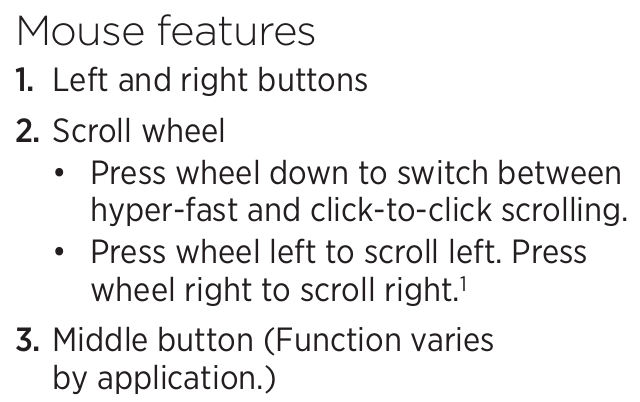
According to the MX Anywhere manual, pressing down on the scroll wheel toggles between hyper-fast and click-to-click modes. OR, Is there anything additional that can be configured for it in Logitech G HUB? anywhere-mouse-mx-quickstart-guide.pdf
Is it a large text box with numerous spaces, line breaks, or special characters?
I think I experienced a similar issue, but I may have grown used to it and don’t notice it as much anymore (I normally not setup large text box, and not that mind in using left and right key to move a bit). You can upload a schematic containing the problematic text box to the forum for review (if you not certain it is a bug), or email it directly to Mike Engelhardt. In QSpice, bugs are reported via email (found under QSpice > Help > About QSpice). My recommendation is to submit one bug report at a time, attach an example schematic, and include a screenshot or short video demonstrating the issue. If Mike is available and agrees it’s a valid bug, he usually fixes it very quickly.
To clarify, I did try testing the mouse wheel both ways—firmly pressing the scroll wheel down as a toggle, and rolling it naturally without pressing it—and unfortunately, it had absolutely no effect.
The G502 uses a completely mechanical lock/unlock button positioned behind the scroll wheel to change modes. The MX Anywhere 2S, however, actually requires you to press directly down on the scroll wheel itself to mechanically shift between the click-to-click (ratchet) and hyper-fast (free-spin) gears.
When the MX Anywhere 2S was in its default click-to-click mode, turning the wheel normally sent zero response to the QSPICE canvas. QSPICE simply ignored the standard scrolling data stream. The only time the software reacted at all was if I held the wheel down while spinning it, which only generated a single, jagged zoom jump because the internal gears were fighting the sensor.
Because a cheap, baseline Walmart mouse worked immediately with zero modifications to Windows or G HUB/Logitech Options, it points to a specific compatibility breakdown between QSPICE’s custom engine and how it processes the high-polling scroll packets generated by Logitech’s advanced MagSpeed/dual-mode tracking firmware.
Very unfortunate… I guess you will have to buy an MX Anywhere and ship it to Mike for verification. Possibly this type of mouse is not that common?
Anyway, you can email Mike to report that you have difficulty zooming in and out with a mouse that has a high-speed scroll mode. I’m just not sure if he can resolve your problem without having that piece of hardware (or if this problem only occur in a particular hardware, is it worth to be solved). But Mike might be out of town currently; maybe when you see QSpice deliver the next update, you can send an email to him for review.
@KSKelvin, haha, I don’t think I’ll be shipping any hardware to Mike anytime soon! Especially since the Logitech MX Anywhere/Master series is arguably the most widely used premium office and engineering mouse line in the world. I literally see them deployed everywhere from corporate tech offices to the desks at my Chase bank in Palo Alto. They are incredibly common!
From a development standpoint, Mike shouldn’t need the physical hardware anyway. The engine just needs an update to listen to standard Windows scroll messages (WM_MOUSEWHEEL) rather than choking on the high-polling, high-resolution packets that advanced mouse drivers output.
It is a bit disappointing that a modern CAD tool struggles with a global bestseller mouse out of the box, but I will definitely take your advice and drop Mike a polite email about the high-speed scroll wheel issue and the text-box I-bar drift once the next update drops.
In the meantime, my $5 Walmart mouse and the keyboard arrow keys will have to do the heavy lifting. Thanks for troubleshooting this with me!
Yes, this is annoying.
It seems the SW does not accurately track the actual windows font rendering, and it’s ‘best guess’ is rather poor.
That failure seems to be worse at lower zooms, ie smaller text. It can be up or down one line!
I find if I zoom in, so the text is large, things improve.
It looks like text height about the same or larger than the ‘I’ text cursor symbol is more predictable.
That’s larger than I am used to, but it becomes more tolerable.
I’ll add another UI quirk : 3. Edit scope is easily lost
You must click outside the edit text box, if you want to not lose your edits, before you go off elsewhere.
Frequently like to add report text to the sim files, which is typically tables of what was tried on either side of optimal.
That means frequent pop over to the plot window to copy values, - that’s perfectly fine in LTSpice as the edit popup stays in place, but QSpice drops scope and loses the edit if you do that.
You need to remember another annoying step, and of course now you must double click and re position your cursor when you come back…