General Guide to Import a TI SPICE Model

TI Pspice model, TI Tina model, TI Spice, Import model

Well, one of the common questions in Qspice forum is that the Texas Instruments (TI) SPICE model doesn’t work. This is an instructional guide that can help you out.

Part 1: Get the model

TI may provide a PSpice Model or a TINA-TI SPICE Model; both can work in Qspice. In this guideline, I use the OPAx392 as an example, and here is the link: https://www.ti.com/product/OPA392#design-tools-simulation

You can download either the PSpice or TINA-TI SPICE Model along with the Reference Design (I suggest PSpice files, as its schematic will be easier to understand). After downloading and unzipping the file, the model file is named with the extension .lib.

Now, use a text editor to open this .lib file (you can rename it to .txt, or just open the .lib file from a text editor), and take a look to ensure it is an unencrypted file. An encrypted file is full of binary data. An unencrypted file contains a readable netlist. If you cannot find an unencrypted model, contact TI yourself. Please don’t ask if Qspice can read encrypted models; it is impossible since encrypted files are specifically designed for that simulation platform.

Part 2: Before importing the model to Qspice

If you need to read this guide, you may not have in-depth experience in using SPICE. I highly recommend that you DON’T try to build a Qspice schematic from datasheet circuits! TI SPICE models are generally very complex, and you just don’t know if they will work with the circuit you build.

TI offers two free SPICE tools: one is PSpice for TI, and the other is TINA-TI. Please download them! You need to register to get PSpice for TI. Again, please download them.
https://www.ti.com/tool/PSPICE-FOR-TI
https://www.ti.com/tool/TINA-TI

The reason is that you should build your first circuit following the PSpice or TINA examples.

Use these tools to open the demo schematic, and the first circuit you build in Qspice should be this circuit. Remember, all members in the forum are volunteers (including myself)!! Build something that you can guarantee will work, instead of your random stuff.

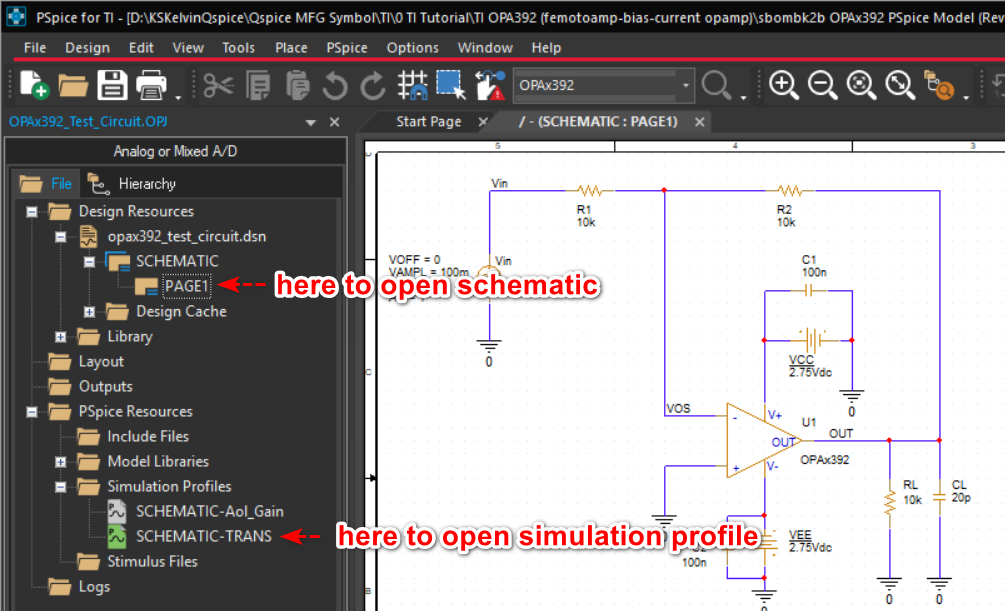
The PSpice project file is .OPJ. Open it. Two things are important for you: one is the schematic (demo circuit), and the other is the simulation profile (how to set up simulation directives).
2 Likes

Part 3: Import model into Qspice and build schematic

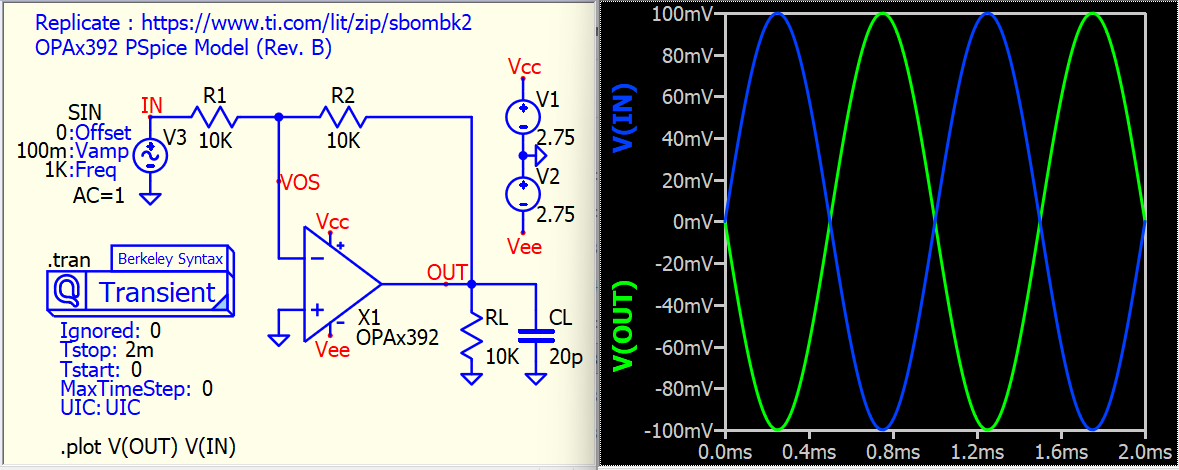
Now, you can follow the demo circuit to build your Qspice schematic.

To import model:

  1. Use a text editor to open the model library (.subckt) file.
  2. Ctrl-A to select all the text, then Ctrl-C to copy all the text.
  3. Go to the Qspice schematic and press Ctrl-V to paste all the text.
  4. A tool for autogenerating symbols will pop up.
  5. Click Include Entire File > YES. (!!! very important)

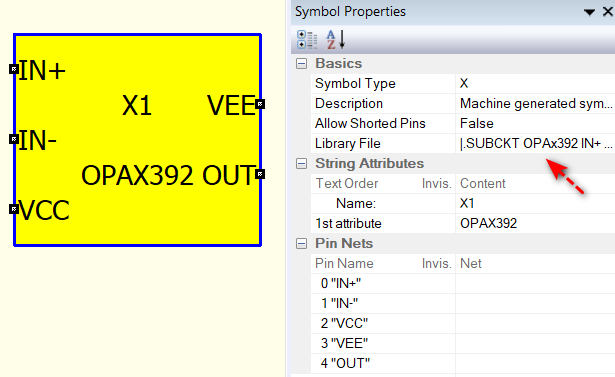
You now have your symbol with an embedded subcircuit netlist.
So, what is an embedded subcircuit netlist? If you right-click on this autogenerated symbol (in yellow) > Show Symbol Properties, and look into the Library section, you can see a one-line subcircuit netlist there. This means you don’t have to carry the .lib file with your schematic. This is very smart, isn’t it?

Now, you can rearrange the pin locations in that yellow block and build a circuit according to the demo circuit.

Part 4: Setup simulation directive

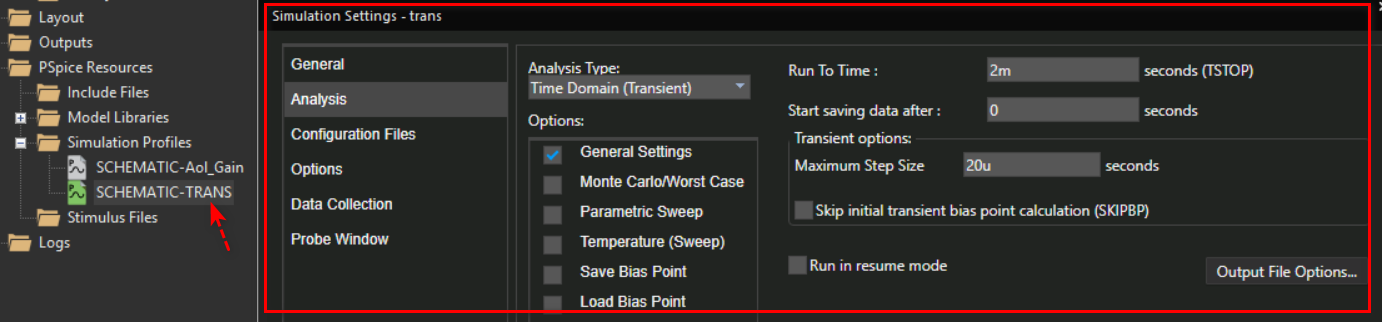
Make sure you build a circuit according to the demo schematic. After that, you need to set up the simulation directive. Go back to PSpice, open the simulation profile, and take a look at how the simulation directive is set up (e.g. simulation time, maxstep etc…). Set up the same thing in Qspice.

Up to this point, you can run your schematic to see if it works.

Part 5 : Troubleshooting
If you encounter a “timestep too small” issue, try adding the following options, perhaps one by one:
.option fastmath=0
.option trtol=7 method=gear
.option cshunt=1p

If nothing helps, it’s time to create a post in the forum. Try to upgrade yourself to a basic member so that you can upload the .qsch file. Avoid relying solely on a screen capture. Remember to save time for those who are offering help. In most cases I review, the issue is NOT with Qspice.

Here is how to increase forum Trust Levels
https://forum.qorvo.com/t/mosfet-transistor-simulation/22388/6

1 Like

If you needs more information about creating symbols, here are some resources

Mike Engelhardt (Qspice author)
Importing 3rd Party Models into QSPICE (Video Tutorial) - Qorvo website
Importing 3rd Party Models into QSPICE (Video Tutorial) - Youtube

KSKelvin (@KSKelvin)
https://github.com/KSKelvin-Github/Qspice
Symbol Guideline : Qspice/Guideline/Qspice - General Reference Guide by KSKelvin.pdf
3rd-party symbols : Qspice/Symbols-KSKelvin/subckt symbol (third-party model)

Prof. MarcosAlonso (@marcos.uniovi)
Qspice #1: Introduction and How to Create New Components (Youtube)

3 Likes